
RESPONSUM will give you suggestions for certain actions to take based upon values entered in ex. the register. It will point you towards next steps to take and assessments to conduct.
See it in action
Pre-requisites to get started
- Permissions other than „reader“ for the „Suggestions“ sub-module to be able to use it’s functionality
Fast-track to Brilliance
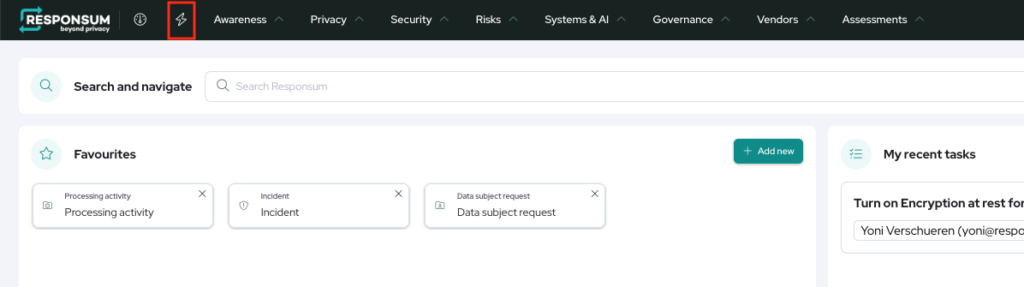
- In the top bar of RESPONSUM, press the „Lightning bolt“ icon to navigate to your Action Center;
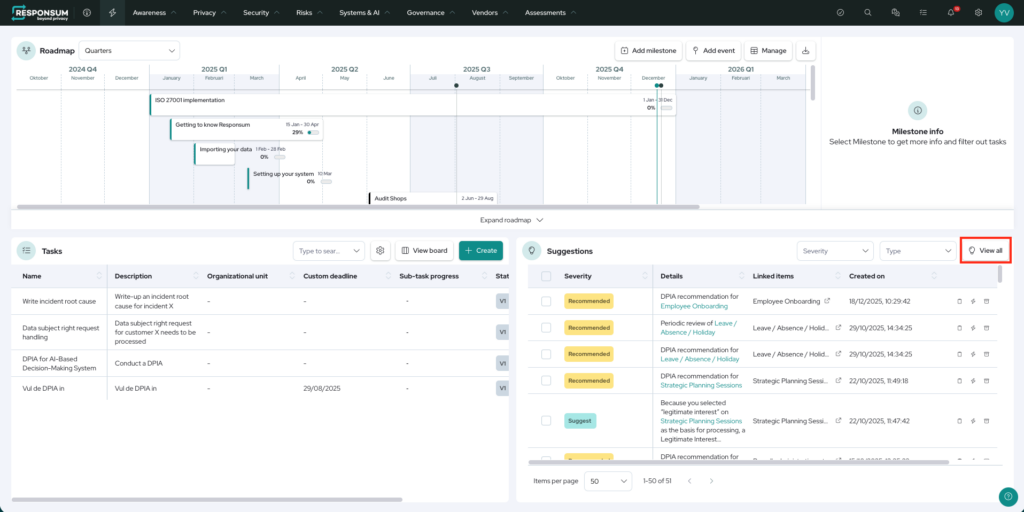
- In the bottom right of the action center, a quick overview of your newest suggestions will be shown;
- You can click through on „View all“ to view a full overview;
- Let RESPONSUM show you suggestions to:
- Create tasks
- Create Legal obligation assessment
- Create LIA’s
- Create DPIA’s
- Create TIA’s
- …
- Use the suggestion to take action and create a suggested task/assessment with pre-filled data
Step-by-step guidance
Overview of Suggestions
- In the top bar of RESPONSUM, press the „Lightning bolt“ icon to navigate to your „Action center“;
- In the bottom right of the action center, a quick overview of your suggestions will be shown;
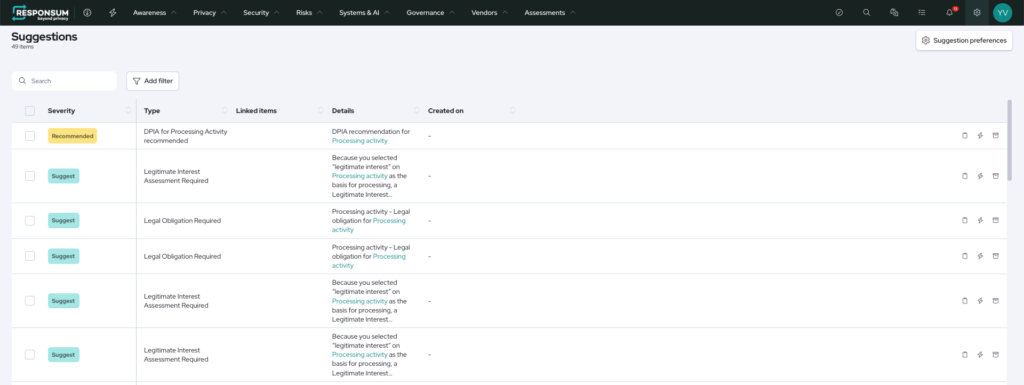
- You can click through to „View all“ to get a full overview of all active suggestions;
- On the overview page, you can use the actions to
- Plan a task
- Trigger the action to create the related item (Ex. A DPIA or a LIA assessment with Pre-filled data)
- This can also be achieved by Clicking the suggestion itself on the overview page.
- „ignore“ the suggestion provided
- With the „suggestion preferences“ button top right you can indicate how and if RESPONSUM should notify you of a suggestion made.
View and use suggestions on a specific item
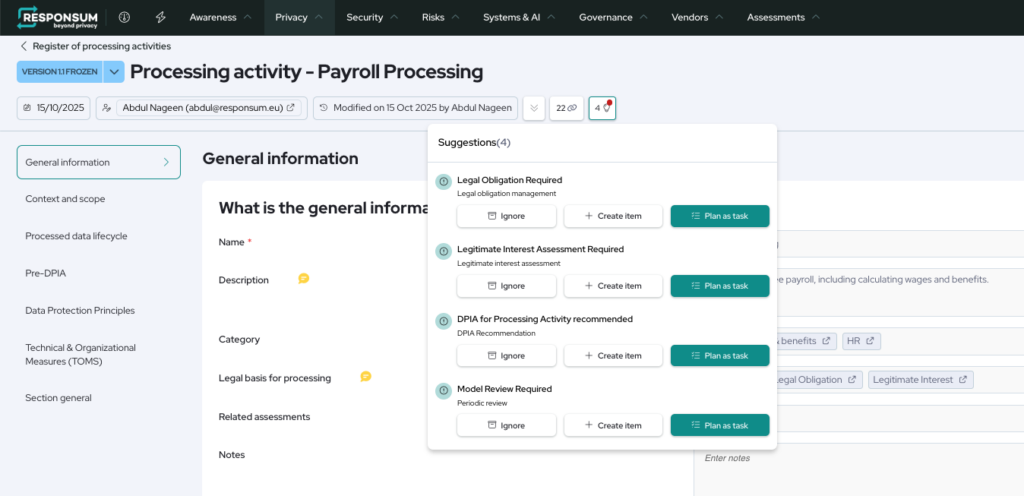
Suggestions are always triggered for specific items (Such as a property in a processing activity triggering an assessment). So on each item in the application, you will be able to see if any suggestions for that item have been triggered.
- Navigate to for example a processing activity and open it from the overview page;
- Look for the „Lightbulb“ icon indicating that you have „Suggestions“ available;
- Click the lightbulb to see the suggestions proposed
- Use the actions on each suggestion to:
- Plan a task
- Trigger the action to create the related item (Ex. A DPIA or a LIA assessment with Pre-filled data)
- This can also be achieved by Clicking the suggestion itself on the overview page.
- „ignore“ the suggestion provided
Default suggestions
Below an overview of the default available suggestions and how they can be triggered:
Processing Activity – Legal Obligation: When the legal basis “Legal Obligation” is selected within a processing activity.
Processing Activity – LIA: When the legal basis “Legitimate Interest” is selected within a processing activity.
DPIA Recommendation: When two or more Yes/No questions in the “Pre-DPIA” section of a processing activity are answered with “Yes.” (These questions are hidden during the customization of your environment)
Processing Activity – TIA: When, in the “Information Provision” section of a Lifecycle for processed data from a processing activity, the question “Outside the EEA?” is answered with “Yes.”
Processing Activity – LIA: When the legal basis “Legitimate Interest” is selected within a processing activity. (This suggestion applies when an LIA form is used instead of the standard module)
DPIA Recommendation: When, in the “Pre-DPIA” section of a processing activity, 2 or more Yes/No questions have been answered with “Yes.” (These questions are hidden during the customization of your environment.) (This suggestion applies when using an LIA form instead of the standard module)
Processing Activity – TIA: When, in the “Information Provision” section of a Lifecycle, the question “Outside the EEA?” regarding data processed in a processing operation is answered with “Yes.” (This suggestion applies when using an LIA form instead of the standard module)
Mitigation: When, in the “Mitigation Measures” section of a mitigation, the “Mitigation Status” field is empty or has a status that is not final. (Open the Mitigation Status metadata list to check which statuses are marked as “Final”).
Recommend assessment for IM system: When, in the “General details” section of an information management system, the question “Does this system use AI?” is answered with “Yes.”
Periodic assessments: 1 month before the date entered in the “Assessment interval” field of an item.