
RESPONSUM allows you to easily configure how ownership of individual items is defined, and what access is conferred. For example, the “owner” of a processing activity may refer to a business owner who simply gets read access, an editor, or even the final reviewer. Ownership & Access allows you to set up the correct meaning of such fields.
See it in action
Pre-requisites to get started
Before diving into Ownership & Access, make sure you have the following in place:
- You have access to customize sub-modules
- Select/Create the necessary fields you would like to gain access to using the sub-module customisation (See above)
- You have an idea of which field you want to imbue with certain privileges (ex: I want the “Responsible” of a processing activity to always have “edit” rights)
Fast-track to Brilliance
- Navigate to the sub-module you want to have a field apply permissions for
- Find or create the field you want to grant the selected user certain permissions for
- After selecting the field, from the ownership & access dropdown select the permission level you want to grant. Additionally select any additional roles you want to apply.
- Press the Save button
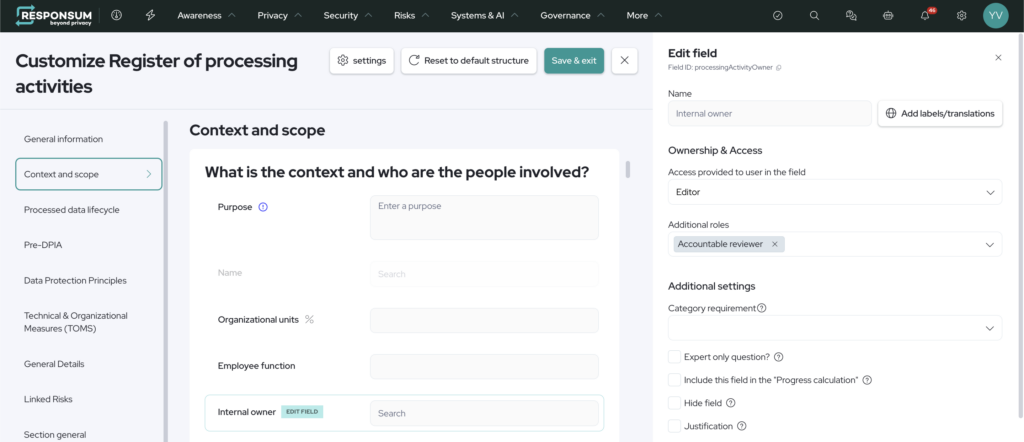
To test if it worked: Navigate to an item and fill in a user into the field you just imbued with rights, and save. This user should now have access to the item.
Access Levels
- Reader: can only see, not comment, edit, or approve
- Collaborator: can read and comment, but not edit or approve
- Editor: can read, comment, and edit, but not approve final versions
- Accountable: can read, comment, edit, and approve final versions
Additional Roles
- Accountable Reviewer: Editors cannot review things themselves, but they can request a review when they are done editing. If an accountable reviewer is present, they will be the ones notified when a review is requested. Otherwise, the editor themselves must choose from a list of all who have the rights to approve. Also when the system automatically decides an item is stale and in need of periodic review, this task will, by default, be assigned to the accountable reviewer.
- Default task assignee: When a task get’s linked to the item where the user is set, that user will be the default assignee for the task being created.
- Notified on suggestion: The user filled in this field will get notified (Notification) on any suggestions triggered around this item
- Get notified when an item is “Approved”: The user filled in this field will get notified (Notification) when a version of this item get’s approved.