RESPONSUM allows you to from any overview page define an item to be set as a « User template ». This will make that the item selected will be transformed into a user template that can be used to create new items from by any user within your environment in the future.
See it in action
Pre-requisites to Get Started
Before creating user templates from items, make sure you have the following in place:
- Access as power or promoted user with editor rights to the sub-modules for which you want to define user templates.
Fast-track to Brilliance
- Navigate to the sub-module for which you want to define a user template
- From the overview page, either create a new item which you later want to transform to a template OR pick an existing one.
- NOTE: An item that is transformed into a template will be removed as an actual item within that sub-module. So if you want to retain the original, be sure to first duplicate the item OR from the created template create a new item to Re-add the original item again.
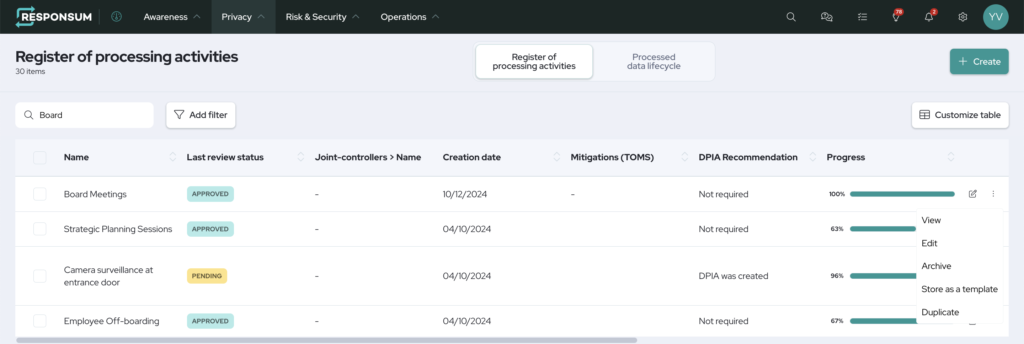
- On the item you want to make a template, select the three dots (« More actions ») followed by « Store as a template »
- You will now notice when creating a new item that you get a pop-up to either « Start from scratch » OR select the item you templated above.
Step-by-Step Guidance
Marking an item as a template
- Navigate to any sub-module for which you want to define a user template
- From the overview page, either create a new item which you later want to transform to a template OR pick an existing one.
- New item can be created with the « Create » button on the overview page followed by filling out the fields that need to be included in the template
- If the item already exists that you want to template, you can go to the next step
- NOTE: An item that is transformed into a template will be removed as an actual item within that sub-module. So if you want to retain the original, be sure to first duplicate the item OR from the created template create a new item to Re-add the original item again.
- From the overview page, on the item you want to make a template, select the three dots (« More actions ») followed by « Store as a template »
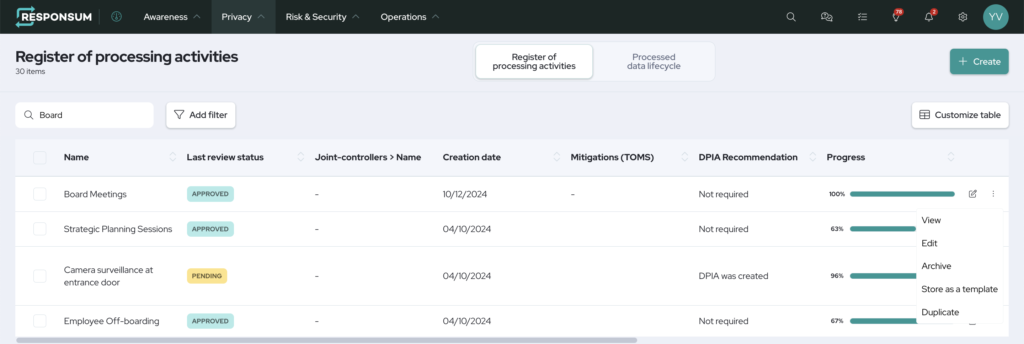
- Now your user template has been created and is ready for use
Using a user template
- From the overview page where you added a user template, use the « Create » button on the top right to create a new item
- A pop-up will open allowing you to choose either to « Start from Scratch » (Creates an empty item) OR scroll through your set user templates followed by pressing « Use template » to start a new item from that pre-defined user template.
If you have any questions related this guide or way of working, please reach out to support@responsum.eu for assistance.